
Explore Clockwork Venue
See how the system works from check-in to the shift report.
Run stage rotation, track entertainer status, dances, and room activity as they happen, then print or export a complete shift report when the night is over.
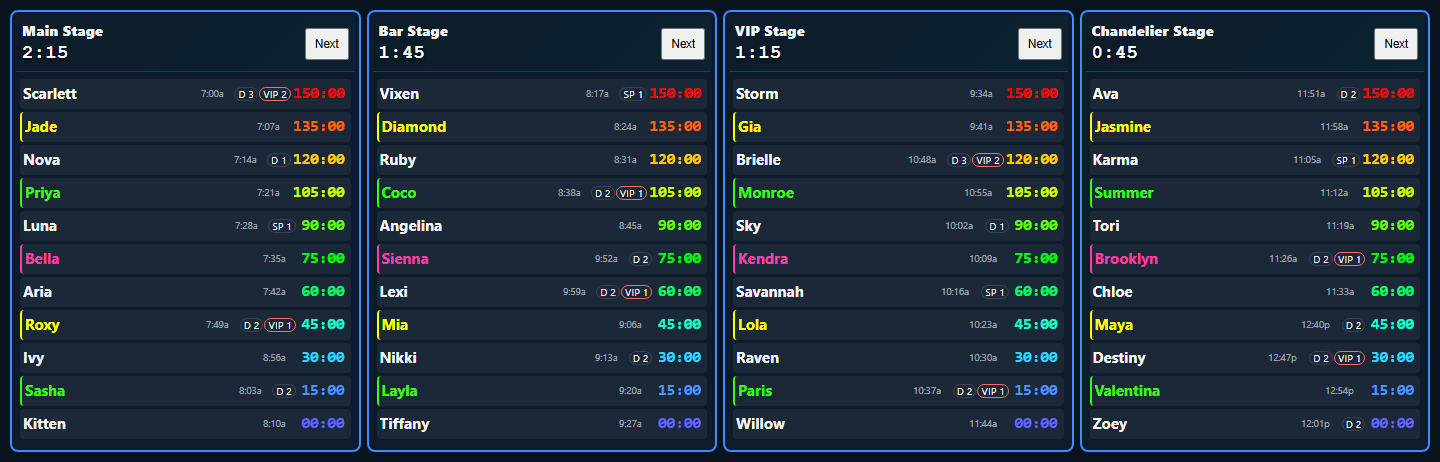
Swipe the console to inspect every stage
Stage rotation and timers
Keep every stage organized.
Run up to 10 stages with names you choose. A live timer at the top of each stage shows how long the current entertainer has been on stage, which is essential for clubs that rotate by time instead of songs.
- Run the rotation from the DJ booth, or have a floor host run it from the floor.
- Every entertainer has a running timer showing how long it has been since they were last on stage. It keeps the rotation easy to follow and easy to explain without having to remember who was up when.
- See entertainer status, dance counts, and VIP room counts beside each name.
- Save an entertainer's song requests directly in her name cell. A small icon shows the DJ which entertainers have a saved request.
Swipe the console to inspect every stage
Live entertainer status
See what every entertainer is doing at a glance.
A color beside each entertainer shows what they are doing right now: available, on stage, in a dance, in a VIP room, in a champagne room, checking out, or unavailable.
- Those status colors update live across every view.
- DJs, hosts, house moms, and managers are all looking at the same current information.
- Keep the booth and floor informed without getting on the radio for an update.
VIP and champagne rooms
See how much time is left in every room.
Start a VIP or champagne room and Clockwork Venue starts its timer. A VIP host can glance at the tablet, see every active room and how much time is left, and know which rooms need attention next.
- Run multiple rooms without checking a slip, looking at a watch, and doing the math.
- See which rooms are close to ending, so the host can check in before time is up and offer another room when appropriate.
- Help prevent entertainers from being left in a room past the scheduled time.
- Give each room a custom color so staff can identify the physical room at a glance.
Live VIP room activity
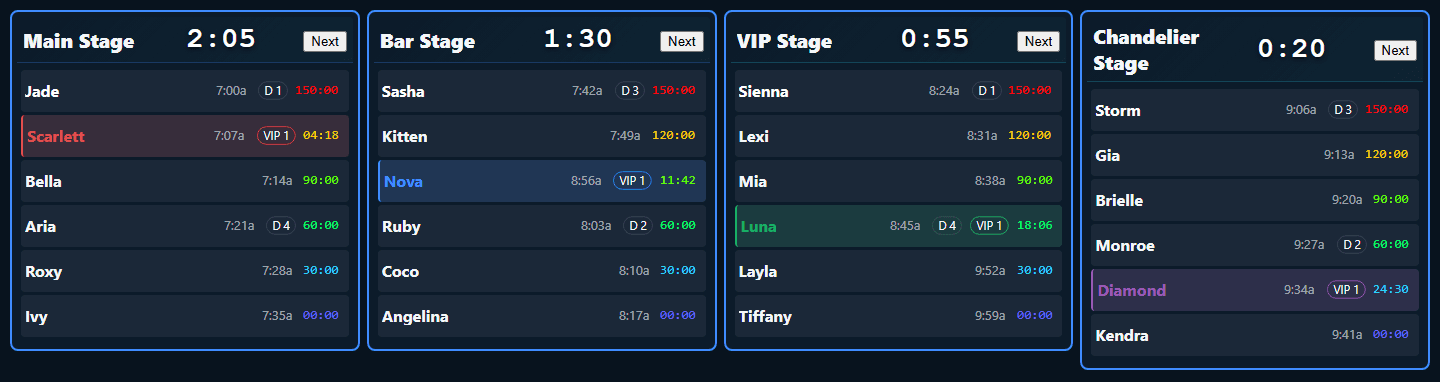
Swipe the room view to inspect every stage
Room colors are customized by the venue.
DJ reminders and promos
Keep announcements, specials, and events on schedule.
Schedule each DJ reminder once. When the time comes, the Tasks button flashes in the booth so it is hard to miss, even during a busy shift.
- Set an uptime dance special to remind the DJ at the top of every hour, or schedule announcements, contests, birthdays, and other events for the time they need to happen.
- Choose whether a task happens once, repeats throughout the night, or can be snoozed until the timing is right.
- Keep all of the club's promotion copy in one place, so the DJ can rotate through more announcements during the shift instead of relying on the same few.
Tasks and Promos
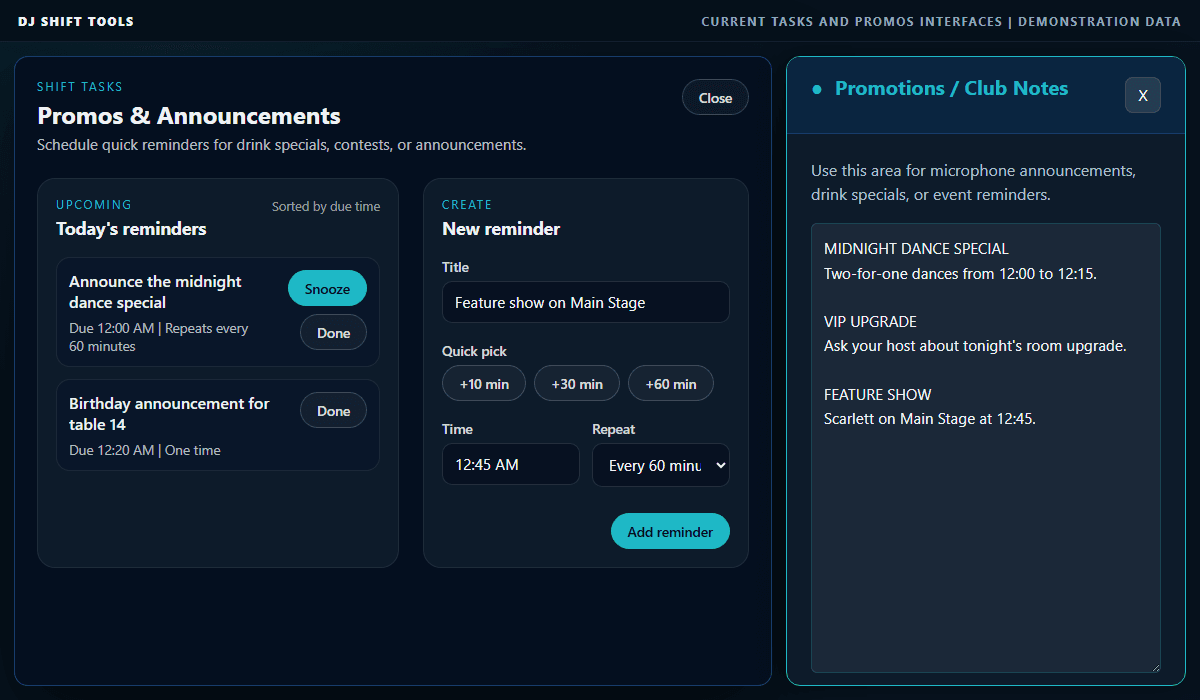
Swipe to inspect the full interface
Screens built for each job
The right screen for each job.
Assign each staff member a role, and they go straight to the screen built for the work they do. Each screen updates live with the information and controls that person needs.
- DJs manage the stage rotation and timers.
- Hosts get the buttons they need for dances, rooms, and specials.
- House moms handle check-in and house fees.
- Door staff see who has been approved to leave.
Live rotation monitor
Place a stripped-down rotation screen in the dressing room, hallway, or anywhere else in the club. It shows stages, entertainer names, timers, and status colors without displaying dance counts or staff controls.
Live rotation monitor
Stages, names, timers, and live status only
Entertainer roster
Keep your entertainer roster current.
Keep a record of every entertainer who has worked at your club. See the last time each person worked, flag profiles that have been inactive for 120 days, and maintain the details staff need during a shift.
- Add profile photos, day or night shift assignments, and notes such as music preferences.
- Use Find Entertainer in Host View to pull up a profile photo quickly. The list is sorted by the current rotation.
- Filter the roster by day or night shift.
- Open the roster from House Mom View or the DJ console to check entertainers in.
Scarlett
photo on fileNight shift | last worked Aug 1
Nova
inactive 3+ monthsDay shift | last worked Apr 12
House Mom View
Handle check-in and house fees from one screen.
In clubs where the house mom checks entertainers in or handles house fees, the House Mom View gives her the tools to do that work from one place. She can open the roster, check entertainers in, and set or update house fees.
- Pull up the roster and check entertainers in as they arrive.
- Set and update house fees.
- See manager approval during checkout, so the house mom knows when an entertainer is cleared to leave.
House Mom view
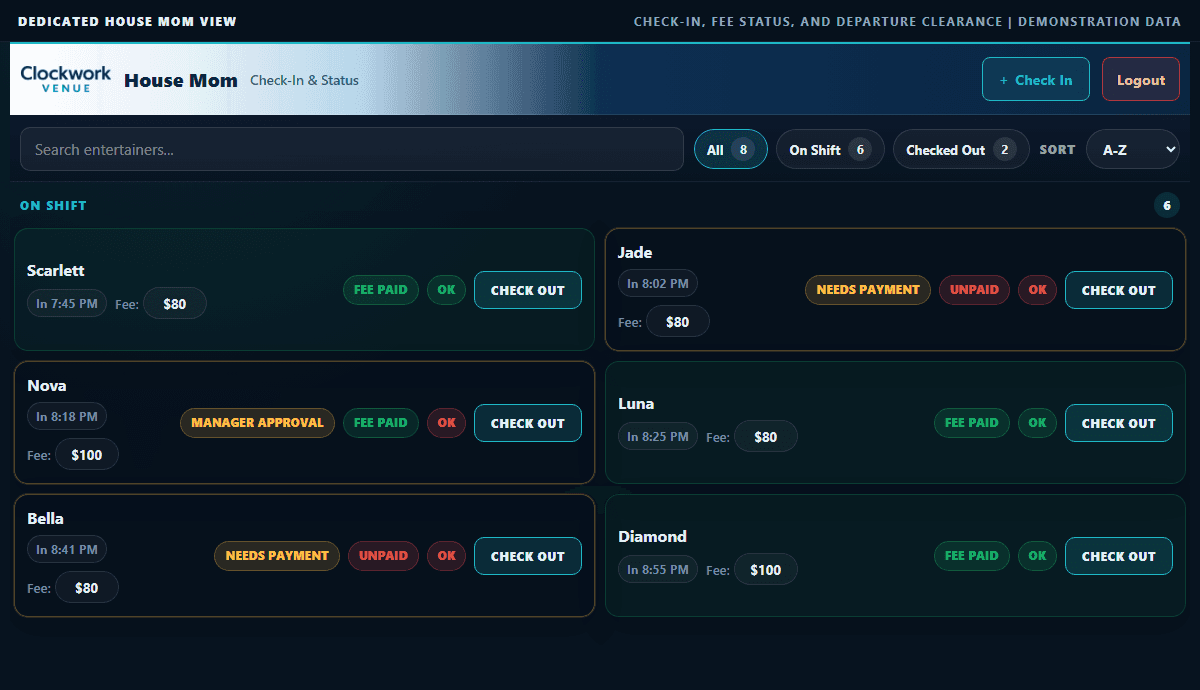
Swipe to inspect the full interface
Manager settlement and Door View
Approve checkout without a paper slip.
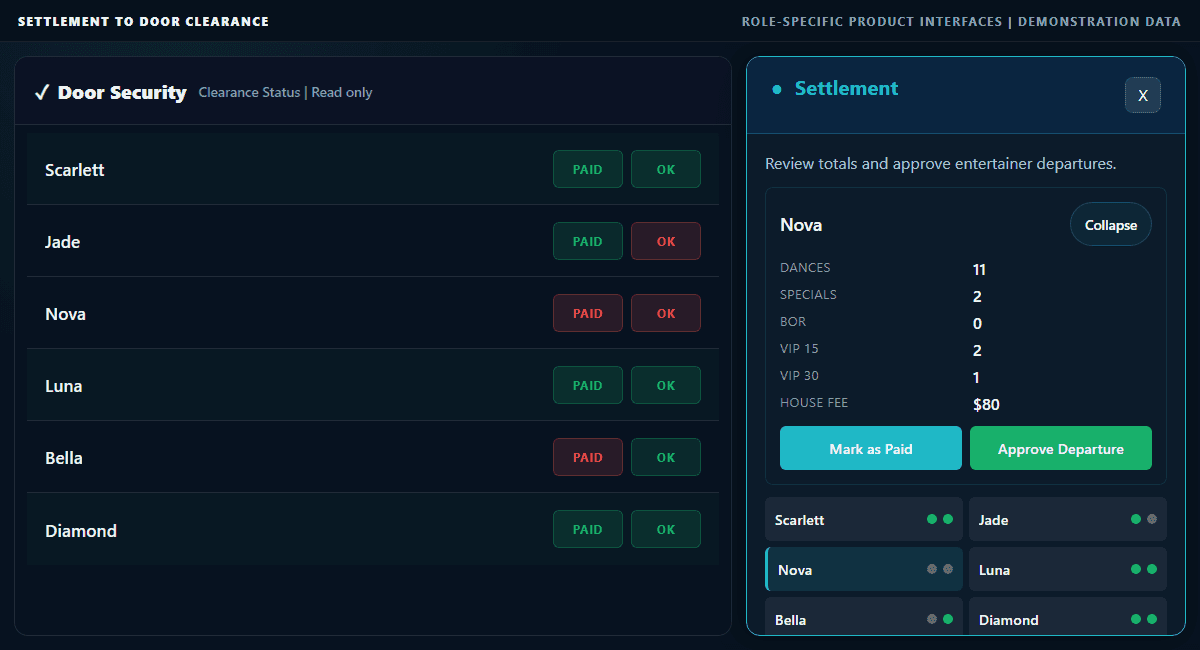
When an entertainer is ready to leave, the manager uses Settlement to collect the required fees, confirm they have been paid, and approve her departure.
- Once approved, two green dots appear next to the entertainer's name.
- As soon as the manager approves checkout, the two green dots update in House Mom View, Door View, and the DJ console.
- Door View is a separate, stripped-down screen for back-door staff. Give the door guy a dedicated tablet that shows entertainers' names and the two green dots, so he can see who has been approved to leave when they are checking out.
- Instead of carrying a paper slip signed by the manager and DJ, the entertainer can be cleared to leave when the required green dots are visible.
Settlement and Door clearance
Swipe to inspect the full interface
Shift records and exports
One report for the entire shift.
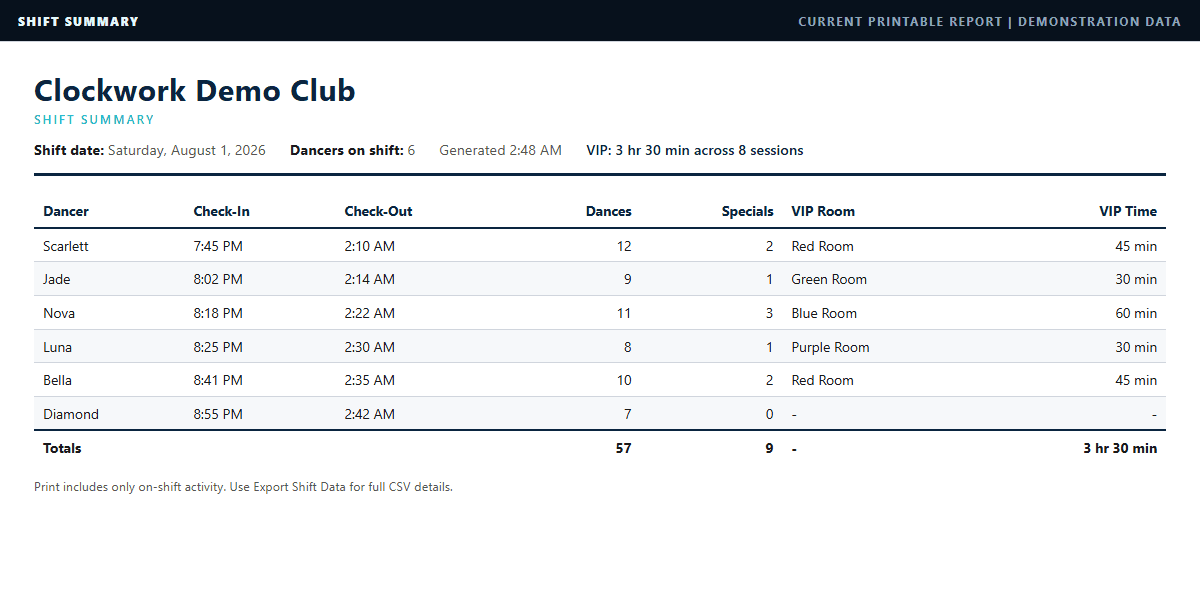
When the DJ starts a new shift, the board starts fresh. As the night runs, Clockwork Venue records check-ins, checkouts, dances, and room activity in the same shift record.
- Instead of separate check-in sheets, host dance-count sheets, and VIP room slips, the information is collected in one place as it happens.
- Print the Shift Report from Host View on a tablet or computer, or export the data to a CSV file on your computer.
- See who worked, when they arrived and left, how long they worked, and the dances and rooms recorded during their shift.
- Give your club a reliable, organized way to track entertainers' hours and earnings instead of relying on separate notes and unorganized sheets of paper.
Shift Summary
Swipe to inspect the full interface
Owner-manager access
Manage your team on the website. Check the floor from the console.
Owner-managers use two separate sign-in points for two different jobs.
Manager Dashboard at ClockworkVenue.com
Log in to the Clockwork Venue website to manage your club's users. Add staff by personal email, assign each person a role, and send them an email link to create their own password.
- Each person signs in to the view assigned to their role.
- The dashboard shows the current subscription status.
- Subscription billing and changes are handled through Stripe, not inside the dashboard.
Live Club View in the Clockwork Venue console
Sign in to the console as an owner-manager to see the current state of the club from anywhere.
- See the total entertainer count at a glance, so you can answer how many entertainers are working right now without calling the club.
- See how many have checked in, how many have checked out, and the total dances for the shift.
- Pull up the live view from home, on the road, or anywhere else you can sign in.
Manager Dashboard
Clockwork Venue support
One place for questions, updates, and feedback.
The Clockwork Venue Discord is the support command center for the product. Find FAQs, report bugs, request features, and see the updates that have been made to the software.
- Ask questions about setup, workflows, and using Clockwork Venue during a real shift.
- Keep up with product changes and new features in the same channel.
- 24/7 phone support is available as an additional paid option for clubs that want direct help during live shifts.
All of it ships in one plan.
Clockwork Venue All Access includes every feature above, unlimited staff logins for one venue, and a 60-day trial before the first charge.